For now, microreels are generated automatically for every microlesson you create and assign to a course.
So what do I need to do?
First, you need to create a microlesson.
Method 1: Create a microlesson from a prompt or a video.
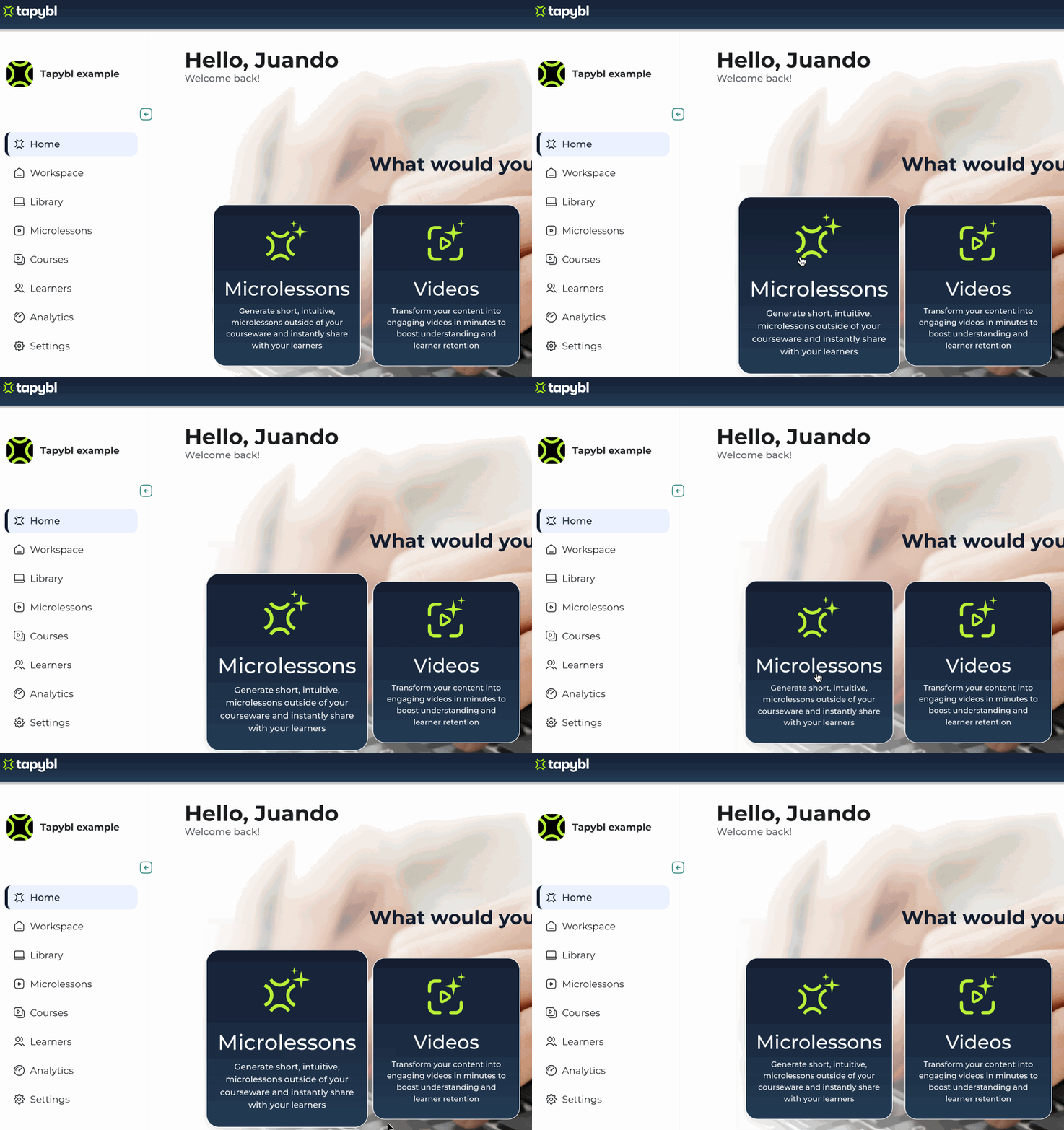
1) On the home page, click on the Microlessons card displayed there.
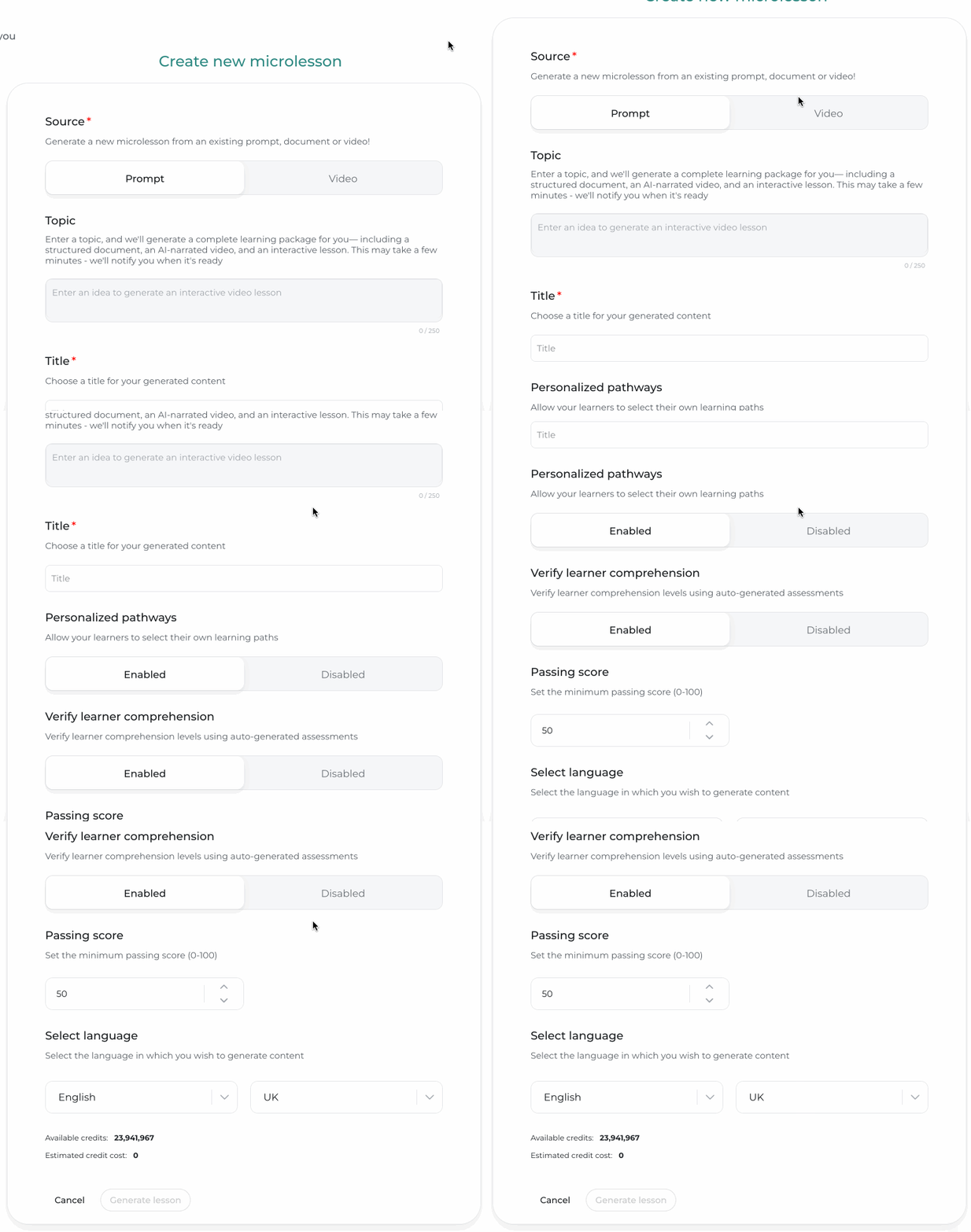
2) Add a topic or select your document, add a title, make sure you have Personalized pathways and Verify learner comprehension enabled, and a passing score. Select any language you like and generate!
Method 2: Create it from a document.
1) Choose the video option from "Home"
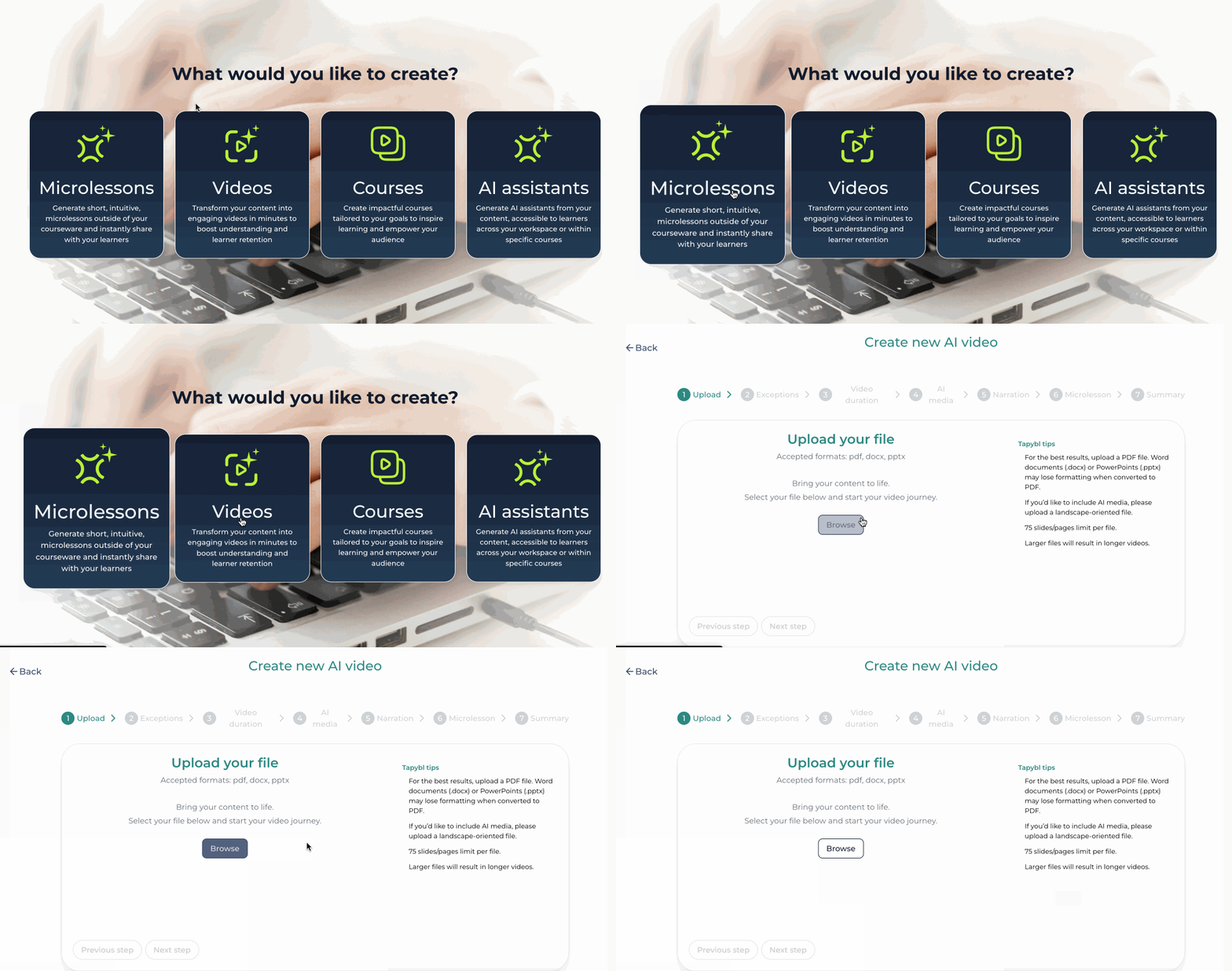
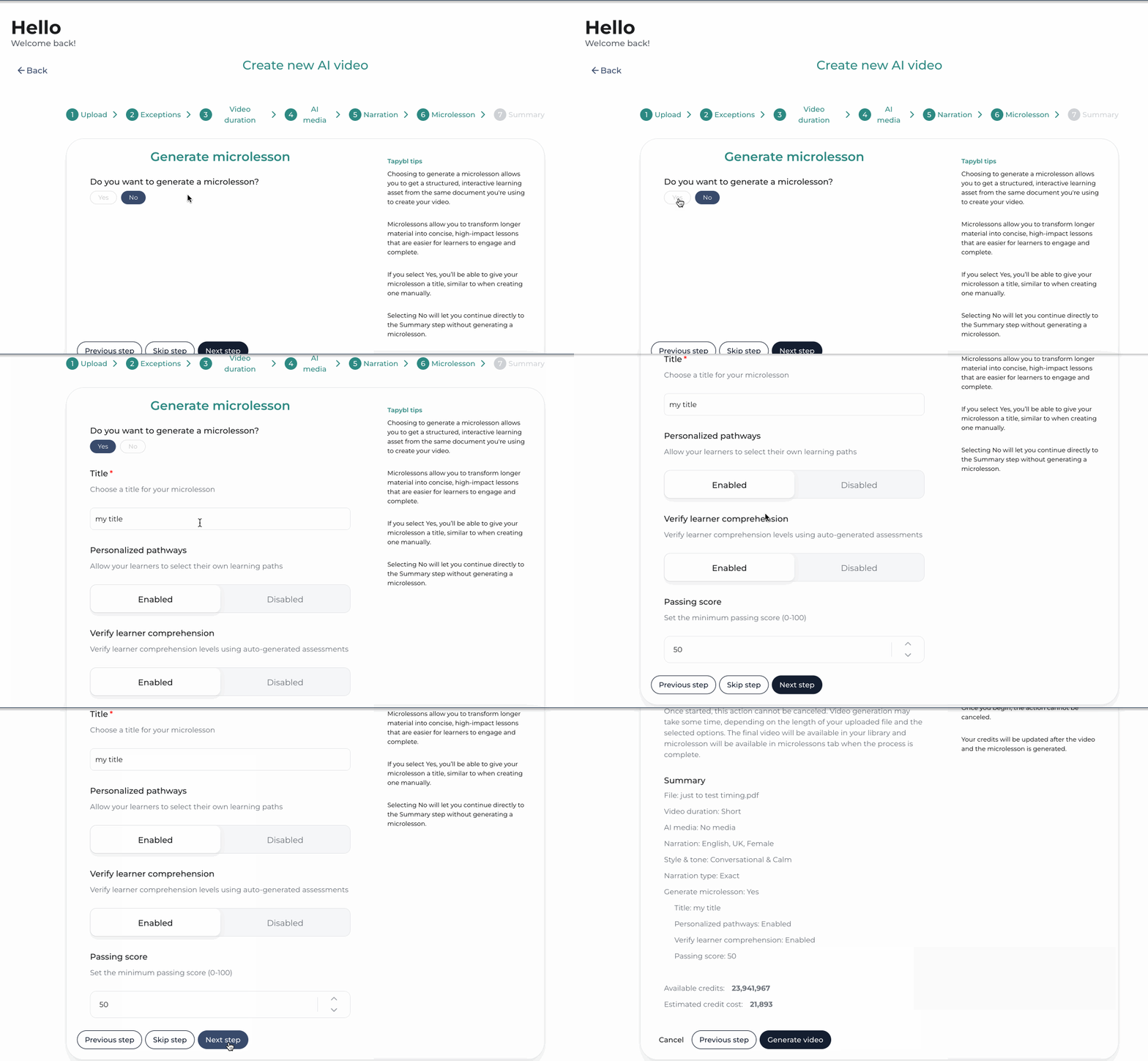
2) Follow the steps and select the options that you want, in step 6 select "Yes" to generate a microlesson.
Once the microlesson is created, you must assign it to a course.
To do that, you can start by creating your first course (if you’ve already done this, you can skip this step).
After your course is created, add the microlesson to it.
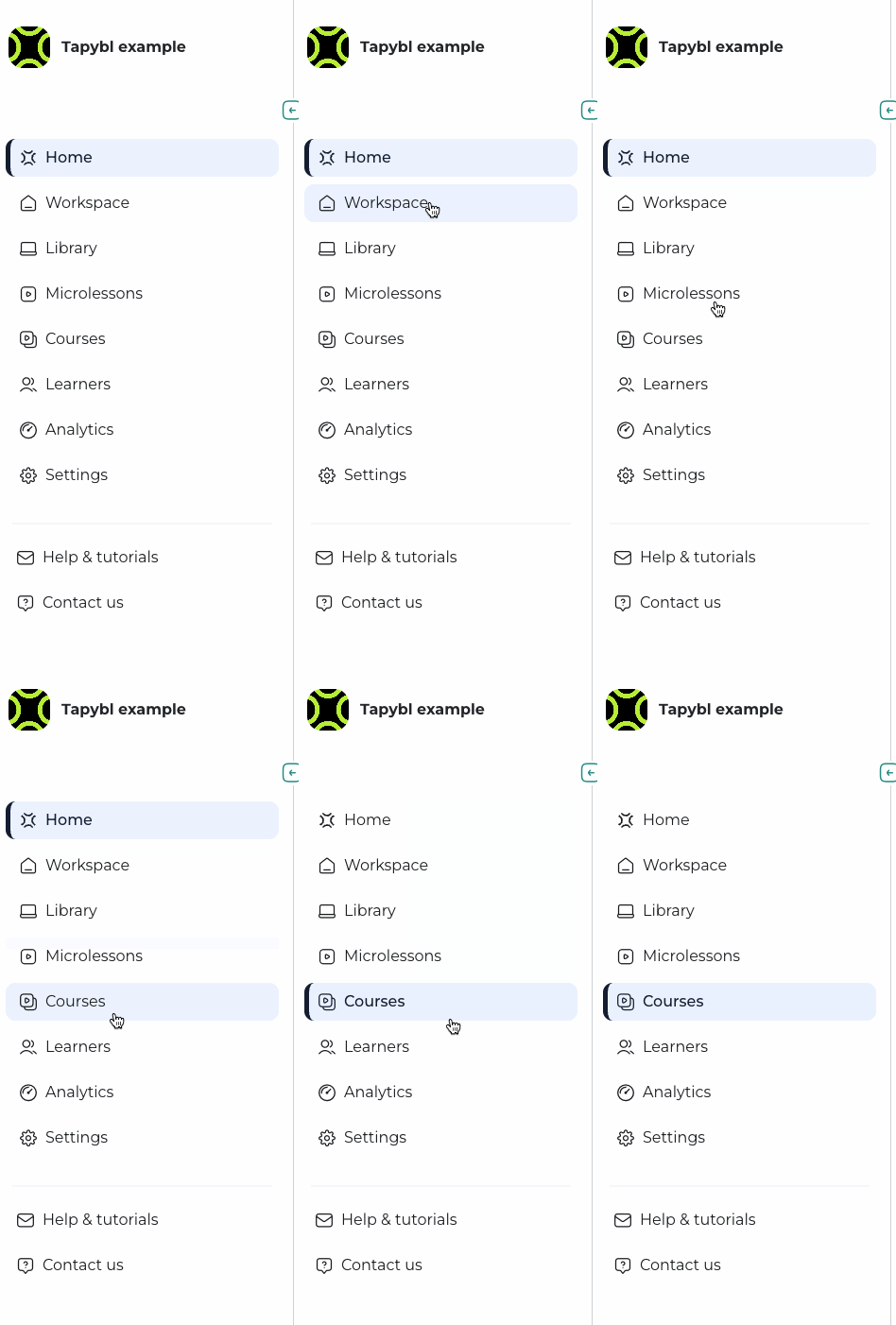
1) Go to courses
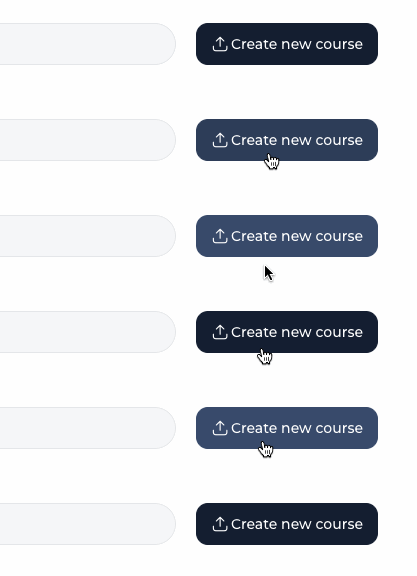
2) Create a new course (top right) or select one
When it’s added, make sure to publish the course.
Now you have both your course and microlesson ready — the next step is to add learners.
To do that, first add learners to your workspace (if you’ve already done this, you can skip this step).
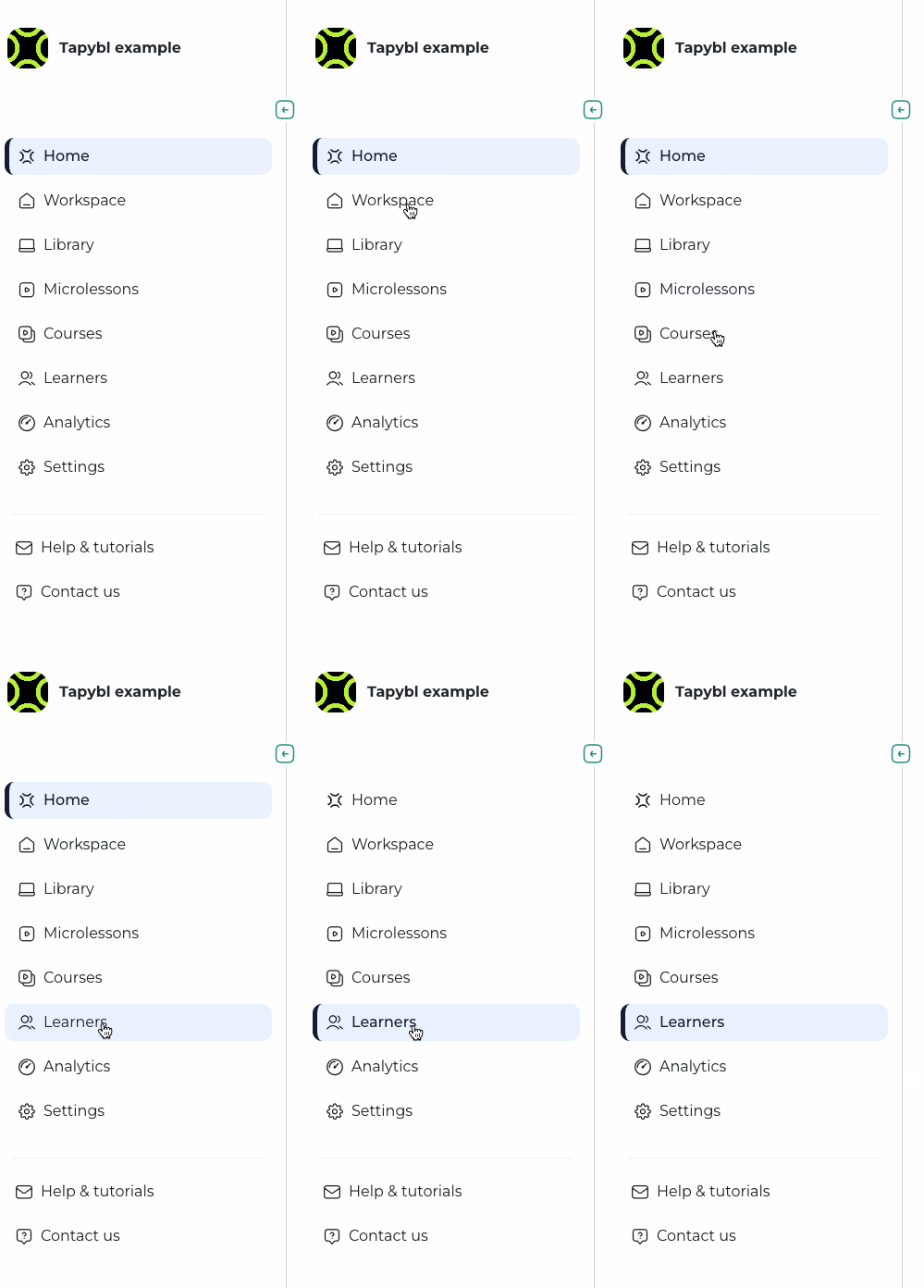
1) Go to learners on your left sidebar
2) Type the email address of the learner you want to invite, then hit enter (for each email) and hit "Submit".
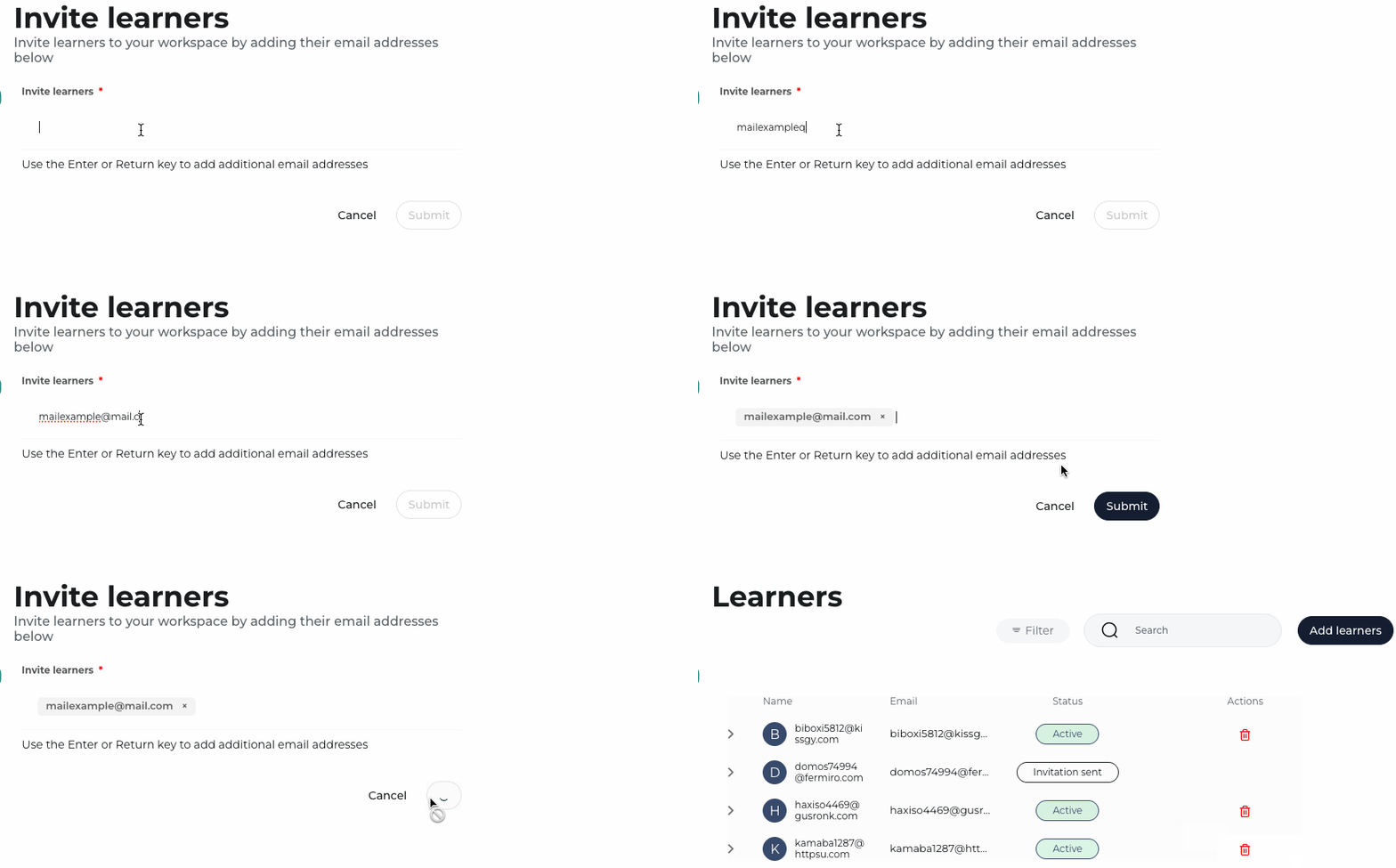
3) You will see this sign on the bottom left corner when is sent.
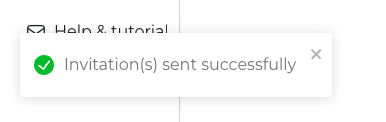
Once that’s done, go back to your course and add the learner to it.
1) Go to courses in menu
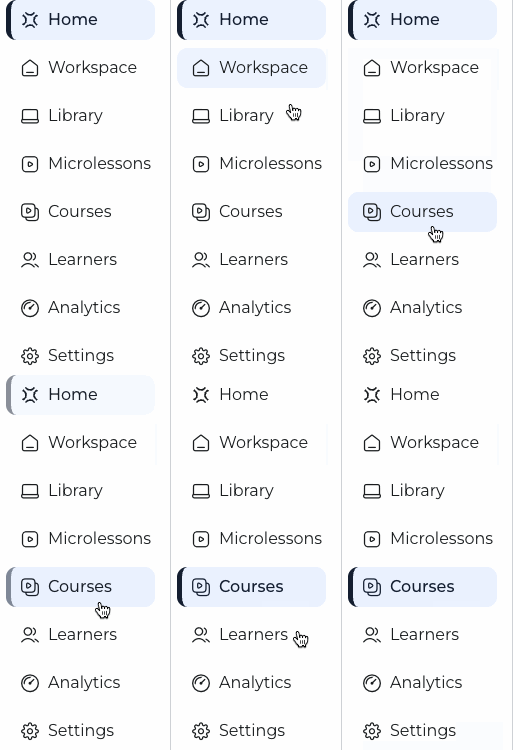
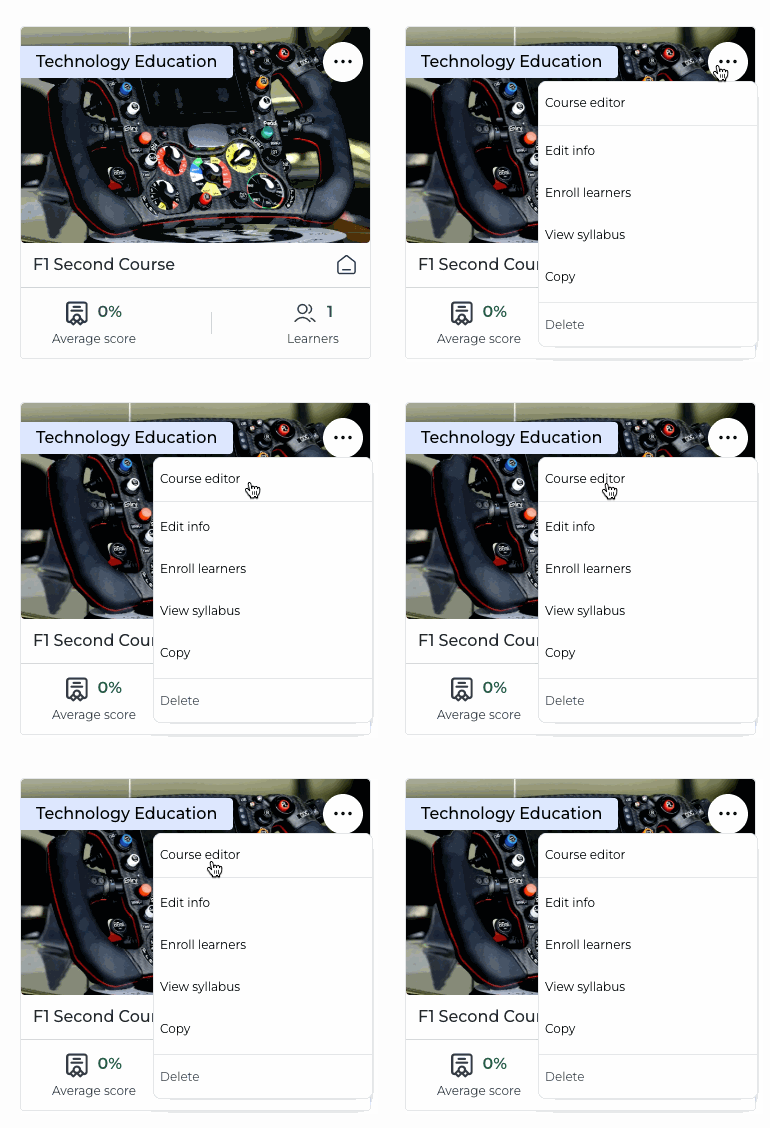
2) Click the three dots on the course you want to manage.

3) Select the learner that you want to add to the course, and hit "Enroll Selected"
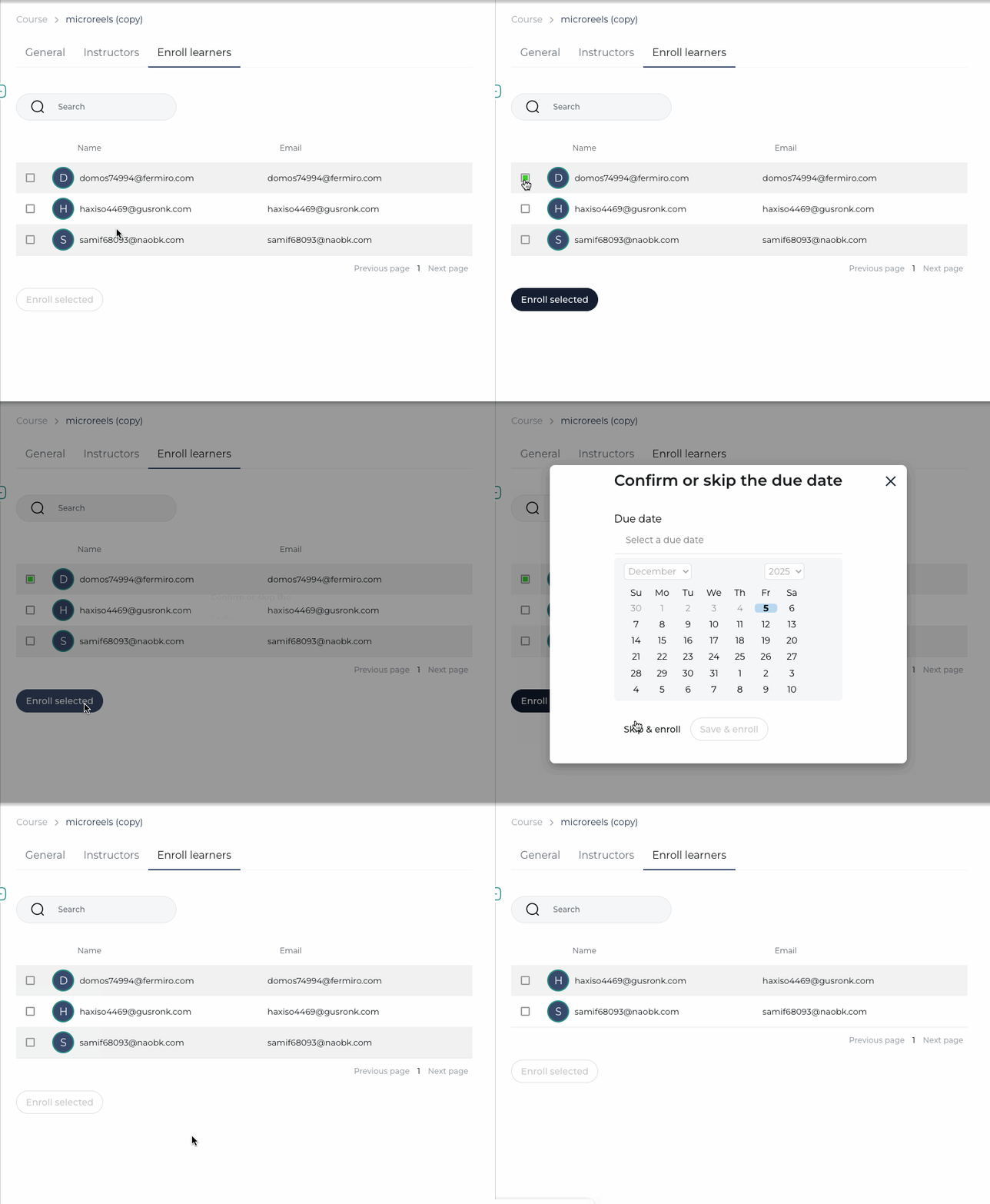
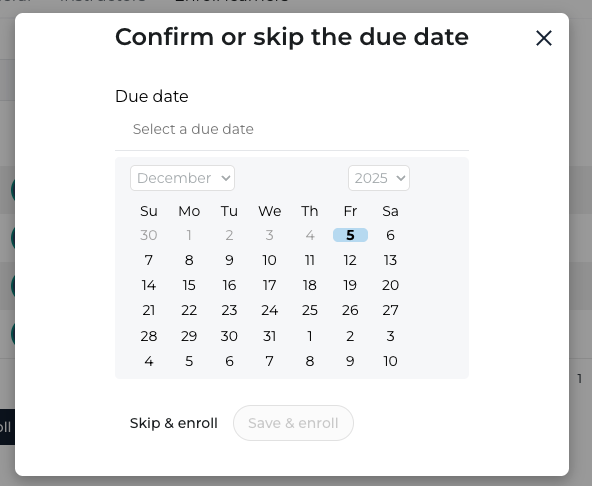
If you want you can set a due date or skip the due date and enroll the learner.
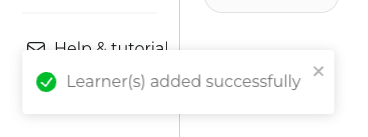
4) When the learner is added you will get this notification on the bottom left.
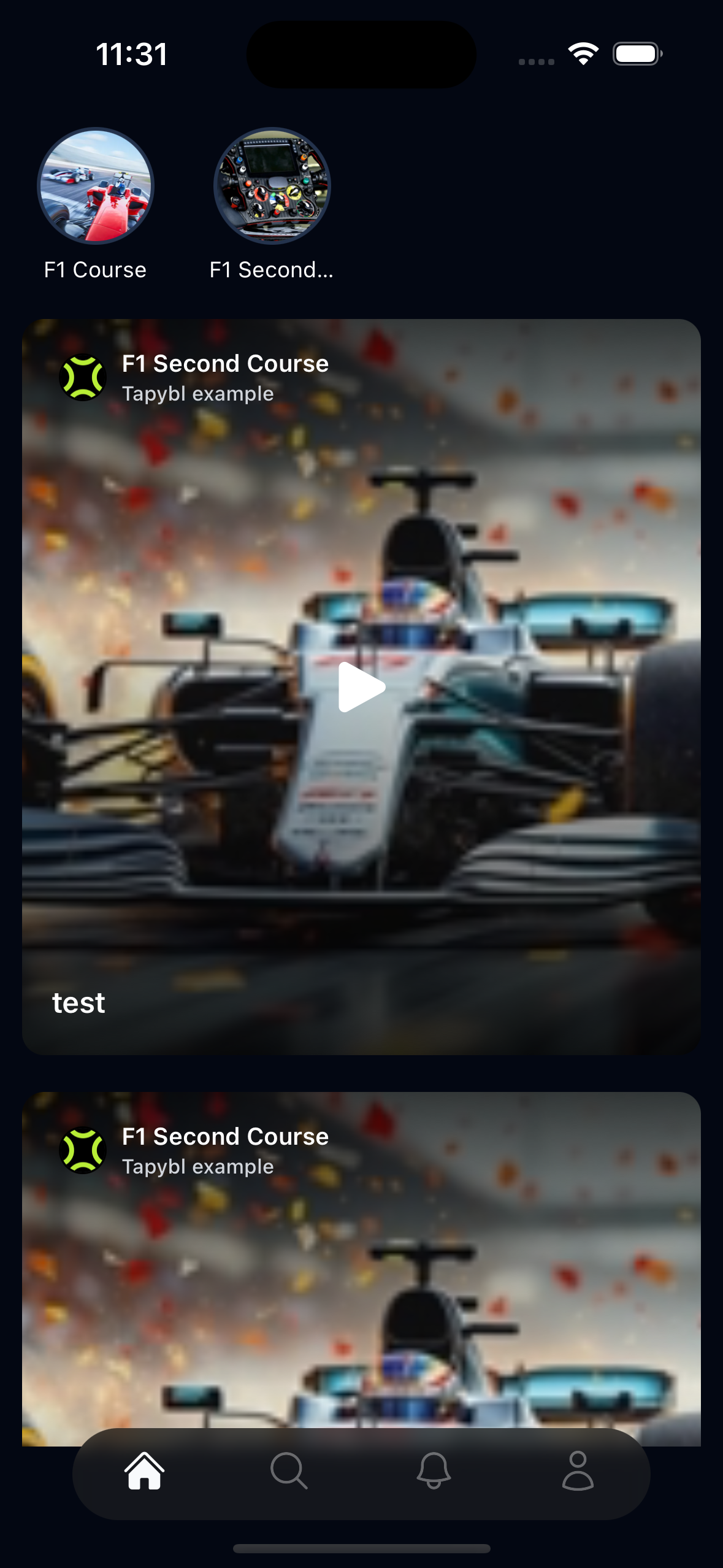
Once you've done this you can check your app and see the new course with microreels inside!
Was this article helpful?
That’s Great!
Thank you for your feedback
Sorry! We couldn't be helpful
Thank you for your feedback
Feedback sent
We appreciate your effort and will try to fix the article